

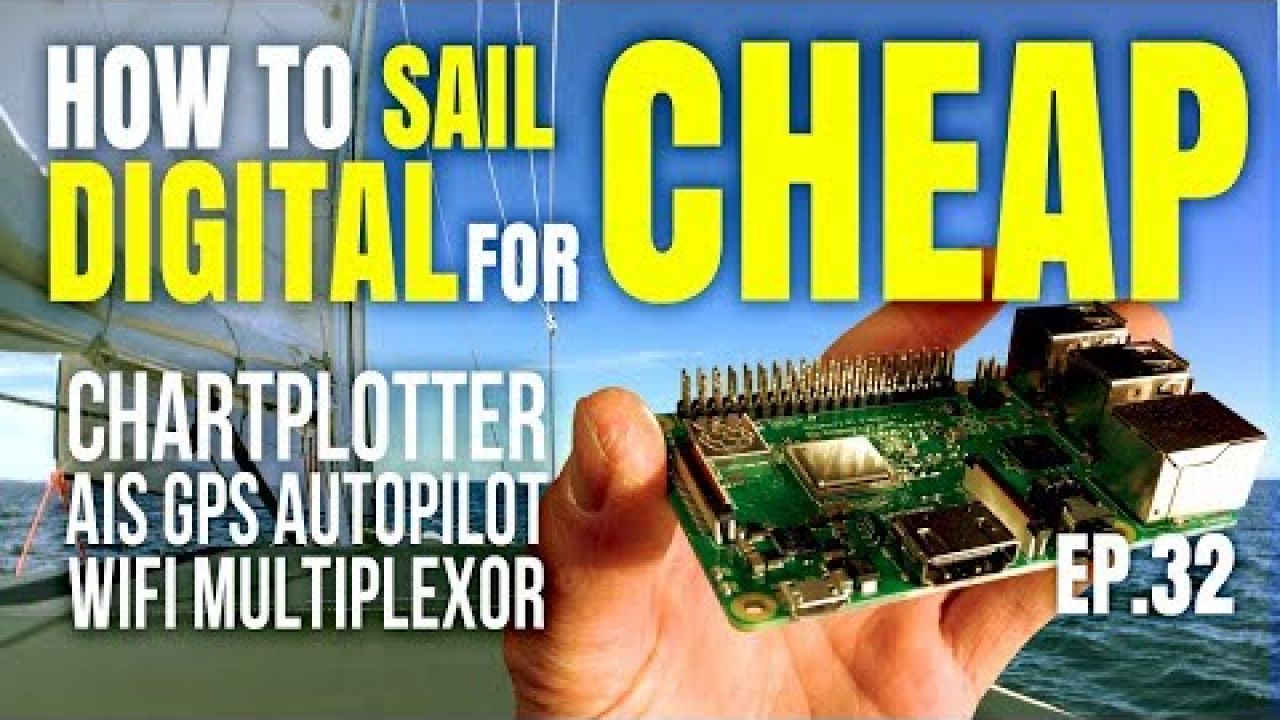
In this video I show you by example how to build your own multiplexing digital chartplotter with autopilot control, AIS, GPS, and Wifi capability using a Ras...
Closed Captions (CC):
[Music]
hey guys so we recently discovered it
was time to change over our navigation
system balachander came with an old b
and g hercules system back in the day
I'm sure it was top-of-the-line it has
an onboard computer crunches all the
data and uses repeaters in the cockpit
to give you all your information but
it's a pretty old system now and some of
the displays were kind of fading one of
them would just completely drop like we
would have our depth and then all of a
sudden we couldn't read our depth and it
was it getting a little scary we decided
it was time to change it up so we
completely got over the old system and
we had to decide on the system to
replace it there's Meritor on a
Raymarine you know BG all the big
systems out there they're pretty pricey
installing them is a pretty big job
however a friend of mine was trying to
talk me into going the DIY route with
this Raspberry Pi system that sounded
crazy to me at first but then it was
explained and shown to me and I realized
that it's not a bad option just a little
bit of homework but if you don't mind a
project and you want to get into it
you're gonna save yourself a lot of
money because this is a great system and
it seems pretty reliable so with this
system you can use your existing
instrument if you have an existing
masthead unit depth sounder speed up
foreground instruments as long as they
output an enemy a signal you can input
that data into the Raspberry Pi which
will multiplex that data out is a stream
and then you can broadcast that through
a Wi-Fi signal out to your tablet or
your PC or your phone or you can just
run your full navigation system right
off the Raspberry Pi because it's
essentially just like an on-board
computer that's running your boat for
you it's pretty neat we got it working
and we like the results so far so I'd
like to share this with you guys and
maybe help you oh because if you were
thinking about going the cheap route
you'll kind of get an idea of how
complicated this is and whether or not
it's something you want to get into or
if it would be better for you to just go
out and buy a full package system and
install one of those so let's get
started and I'll show you how I install
the Raspberry Pi system with open
plotter in my nav station as our onboard
computer in this video you'll learn how
to build your own Wi-Fi multiplexer with
chartplotter autopilot control AIS and a
live enemy a zero 183 or nmea 2000 data
feed for all your sailboat data and use
it with your phone iPad Android or
Windows tablet or laptop I've included
links to all of the online sources I
used in the show description below and
most of the parts that you need are
available
Amazon so you'll need existing boat
instruments that can output enemy age
zero 183 enemy a mm or C talk data
you'll need some marine grade wiring a
Raspberry Pi 3 or greater a microSD card
with 16 gigabyte capacity or greater an
HDMI monitor that operates on 12 volts I
mounted a small 7-inch touchscreen one
in my nav station one or more serial 2
USB adapters preferably one with TX and
rx that's input and output and other
adapters now Don's depending on your
particular situation oh and of course
the keyboard in a mouse so this is a
Raspberry Pi when your Raspberry Pi
comes you'll notice that it looks like a
little computer that's exactly what it
is it's like a little computer
motherboard you'll notice that on this
unit there's four USB ports there's an
Ethernet connection port there's an HDMI
connection port and a mini USB port that
you'll use when you power the Raspberry
Pi but most importantly right on the
back there's kind of a little metal
pocket and that's where the SD card goes
so your SD card is basically your hard
drive in this computer and all the
information that you're going to use
your operating system is stored on this
SD card so in this case where we're
using open CP n but your entire open CP
n will be stored on this card and all
your charts and everything else that
you'll be using to navigate with alright
so let's open up the console and I'll
show you where I installed the Raspberry
Pi so this is an old GPS so putting GPS
data to my AIS twitch then multiplex is
a is an GPS data back to my Raspberry Pi
what you've got back here in this black
box is actually the Raspberry Pi I just
picked up this little box it's just
right to fit the pie and I mounted it
inside down here this is an active sense
d st - you probably won't need one of
these this is very specific from my
system because when I took out my old
hercules system i was left with the
speed over ground transducer and the
depth transducer which were still good
and i kind of wanted to reuse them but
they didn't work at the same frequency
as our modern-day instruments act a
sense makes this little box here and
what this does is it takes the old
analog data from those old transducers
and turns them into modern enemy a zero
one eight three data and then i plug
that into my pi that's how I get my
depth at my speed
like I said you guys probably won't need
that if you have more modern instruments
than I do and this here is a USB hub you
might need a USB hub if you're plugging
in more than four things into the
raspberry pi raspberry PI's only have
four USB ports so in my case I needed
more than four so I had to pick up a hub
and it's also really important that you
look for a USB hub that's powered the
reason being if you overpower your
Raspberry Pi by plugging a whole bunch
of USBs in you'll get a lightning bolt
symbol up in the right corner and that
means that the pi is having a problem
then it's not getting all the power it
needs anything you plug into this hub
will be powered by its own independent
power source operating on five volts you
can plug this into one of your Raspberry
Pi USB ports and you still have three
good USB ports on your PHA to use for
other things and I just mounted it here
on top of my axis sense DST - so it's
really important if you're installing an
autopilot with your Raspberry Pi that
you get a USB to serial adapter that can
handle both TX and rx so that would be
transmit and receive so one of these
wires is outputting enemy a0 183 and one
of these wires is inputting enemy 0 23
and I'm using this to talk to my auto
pilot when I want the Raspberry Pi to
move my rudder it'll send the adequate
enemy a data to my auto pilot I also
wanted to mention that I found it really
helpful to have a USB female connector
plugged into your Raspberry Pi that is
accessible from outside of wherever you
install the Raspberry Pi this is so that
I can plug in a jump drive like for
instance I had to copy all of my charts
over so that I'd have my charts they
were on a USB stick so this came in
handy something to think about if you're
installing the Raspberry Pi behind a
console like I did first thing you're
gonna want to do before you try out your
Raspberry Pi is to get your operating
system put on your micro sd card my
laptop doesn't have a micro SD card port
but I do have one of the old SD card
ports like this this is a micro SD
adapter you'll need to download your
operating system it's called open
plotter it's open source and it's
absolutely free just go to WWC lucam
that's sa ILO OG com click download and
follow the instructions
open plotter uses a custom version of
the noobs operating system for the
Raspberry Pi which already has open CP n
and everything you need pre-installed
and ready to go so it's very easy to get
started all the documentation you need
including lots of other tips can be
found here on this website make sure you
follow all of the installation and setup
steps found here just click documents on
the main page once your operating system
is installed and everything is connected
click on the open plotter icon at the
top of the screen it's a blue anchor
open plotter should auto detect any
active and MEA signals coming into the
raspberry pi if they're not Auto
detected the wires might not be
connected right or you might have the
wrong serial to USB adapter click on the
signal ke tab to check out your enemy a
streams here you can name them and
direct them and make sure they're being
properly multiplexed once you've
followed all the steps you should be
able to see all of your enemy a streams
from here you can use open CP n as your
primary chartplotter which can be
mirrored out to other devices or you can
download and install open CP N or
download and install your favorite
chartplotter software on any device as
long as it can interpret NMEA 0 183 data
coming in over a Wi-Fi signal and send
data back to the raspberry pi via Wi-Fi
and that device will become your active
chartplotter
so that's it for this week's video I
hope you guys enjoyed it remember that I
included links to all of the online
sources I used to build my PI in the
show description below if you like our
videos please don't forget to subscribe
and if you want leave a like or a
comment because you read them thanks so
much see you guys later
How to Sail Digital for CHEAP with Raspberry Pi | Sailing Balachandra S02E32
Uploaded by:
Cormier Daniel
•
Category:
Boat Building/Maintenance/Repair, Instructional
•
Added on
12 January 2019
Description
In this video I show you by example how to build your own multiplexing digital chartplotter with autopilot control, AIS, GPS, and Wifi capability using a Ras...
Closed Captions (CC):
[Music]
hey guys so we recently discovered it
was time to change over our navigation
system...
Closed Captions (CC):
[Music]
hey guys so we recently discovered it
was time to change over our navigation
system...